
5. Write and send
This step writes a message in your editor and sends it from tt, then answers one. tt --demo has no mail account (c says There is no account to write from.), so this step needs a real one.
What you need
Section titled “What you need”A mail account in config.toml with a store and a transport, as on First run. The empty file of step 1 has none. Check the account, and that the transport works:
tcli check --connecttt gives the terminal to your editor: the one in $VISUAL, else $EDITOR, else vi. An editor that opens a window and returns at once, such as code without -w, does not work.
Write a message to yourself
Section titled “Write a message to yourself”Send the first message to your own address, so that nothing goes to anyone else by mistake. Open tt without --demo:
ttWith the focus on the list, press c. The editor opens on a file like this one:
From: Tom <tom@example.com>To:Cc:Bcc:Subject:Write your own address after To: and First message after Subject:, then, below the blank line that is already there, the text Hello from Tilde. Save the file and quit the editor.
Checkpoint
Section titled “Checkpoint”You should see a window with the account that sends the message, the recipient, the subject and the size of the text. Its keys are on top:
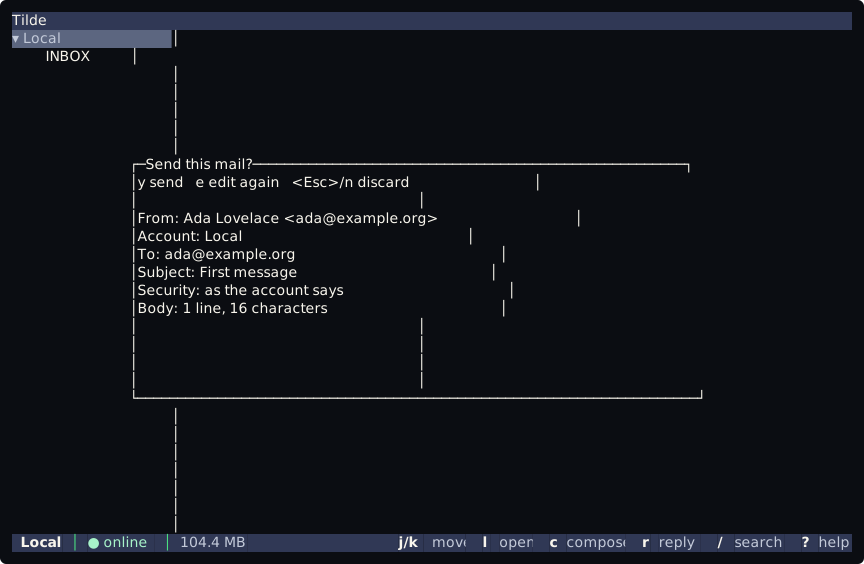
| Press | What happens |
|---|---|
y |
send the message in the background |
e |
open the editor again on the file |
n, Esc |
drop the message |
Press y. The bottom bar says Mail sent., or why the mail could not be sent. When the message reaches your INBOX, it shows at the top of the list. On an IMAP or Maildir account it comes in without a key.
A file with a mistake, such as an address without a domain, opens the editor again with the mistakes on top as # ERROR: lines, and what you wrote stays. If you leave it as it is, a window shows the mistakes and offers e to edit again and n to drop the message. A new file that you leave untouched drops the message.
Answer a message
Section titled “Answer a message”Select a message and press r to answer its sender, or R to answer everyone. It works in the list and in the reader. The editor opens on a file with To, Subject with one Re:, and the text of the message quoted with >. Write the answer above it and go on as for a new message.
tt does not keep a copy in the Sent folder yet, and a message that you drop is not kept as a draft. The README of tt has the whole description, with every header of the file.
From the command line
Section titled “From the command line”tcli sends too, without the editor. The text of the message is the standard input:
echo "Hello from Tilde" | tcli send email --to ada@example.org --subject "First message"It prints one line that names the account and the recipients: Sent from work to ada@example.org. It also takes --cc, --bcc, --attach, --sign and --encrypt: see Send mail and chat.
Next: 6. Switch to chat.