
3. Read a message
This step opens a message in the reader, scrolls it and goes back to the list. Start with the focus on the list, as at the end of step 2.
Open it
Section titled “Open it”Press gg to select the first message, then l. Enter does the same.
Checkpoint
Section titled “Checkpoint”You should see the reader over the whole screen, with the subject in its frame:
┌─Subject 0: weekly report──────────────────│From: Ada Lovelace│To: Tom <tom@example.com>│Date: 06 Nov 12:00│Subject: Subject 0: weekly report││This is a made-up message, the same on every run. It only has to be long enough to scroll.││Line 1 of the made-up message: lunch on Friday.The headers come first, then a blank line, then the text. A real message can have more headers: Cc, and one Attachment line for each attachment.
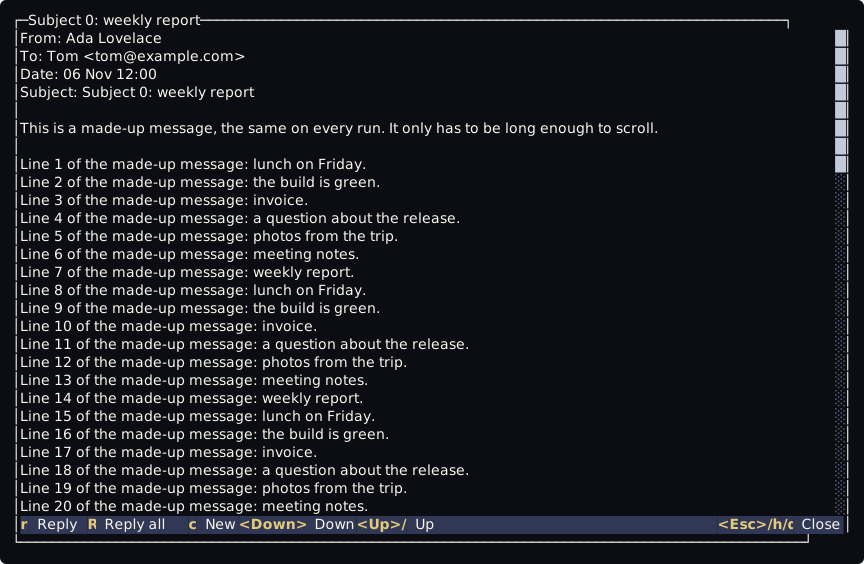
The last row inside the frame is a bar with the keys that work here, with Close at the right.
Scroll it
Section titled “Scroll it”| Press | What happens |
|---|---|
j, k |
one row down or up |
Ctrl-d, Ctrl-u |
half a page down or up |
G |
the end: the last row is Line 80 of the made-up message: invoice. |
gg |
back to the start |
The keys of the list do not work while the reader is open: it has keys of its own.
Go back
Section titled “Go back”Press q. h and Esc do the same.
You should see the list again, with message 1 of 200 in the bottom bar.
Opening a message does not mark it as read yet. More about the reader is on Folders and the reader.
Next: 4. Search.