
2. Move in the list
This step moves the selection in the list of messages, then in the tree of accounts and folders. Start from the screen of step 1.
In the list
Section titled “In the list”The list has the focus when tt starts. Press these keys and look at the bottom bar after each one. It reads Personal │ message N of 200 │ …; the table gives the message part:
| Press | The bar says |
|---|---|
j |
message 2 of 200 |
5j |
message 7 of 200 |
G |
message 200 of 200 |
gg |
message 1 of 200 |
Ctrl-d |
message 15 of 200 |
3G |
message 3 of 200 |
jandkgo to the next and the previous message.DownandUpdo the same.- A number before a key is a count:
5jmoves five messages. Ggoes to the last message,ggto the first. With a count,3Ggoes to the third.Ctrl-dandCtrl-umove half a page. The bar shows15with a terminal of 30 rows. A taller terminal moves more.
In the tree
Section titled “In the tree”Press gg to go back to the first message, then Ctrl-w. The focus moves to the tree, on Personal.
- Press
h.Personalcloses and its folders go away. - Press
j. The selection goes down toWork. - Press
l.Workopens.
In the demo the list keeps the same made-up messages whatever you select in the tree. With real accounts, an account shows the messages of its INBOX, and a folder its own.
Checkpoint
Section titled “Checkpoint”You should see the tree like this:
▸ Personal │N Ada Lovelace Subject 0: weekly report▾ Work │ Grace Hopper Subject 1: lunch on Friday INBOX 3│ Alan Turing Subject 2: the build is green Reports │N Margaret Hamilton Subject 3: invoice Chat │ Linus Torvalds Subject 4: a question about the release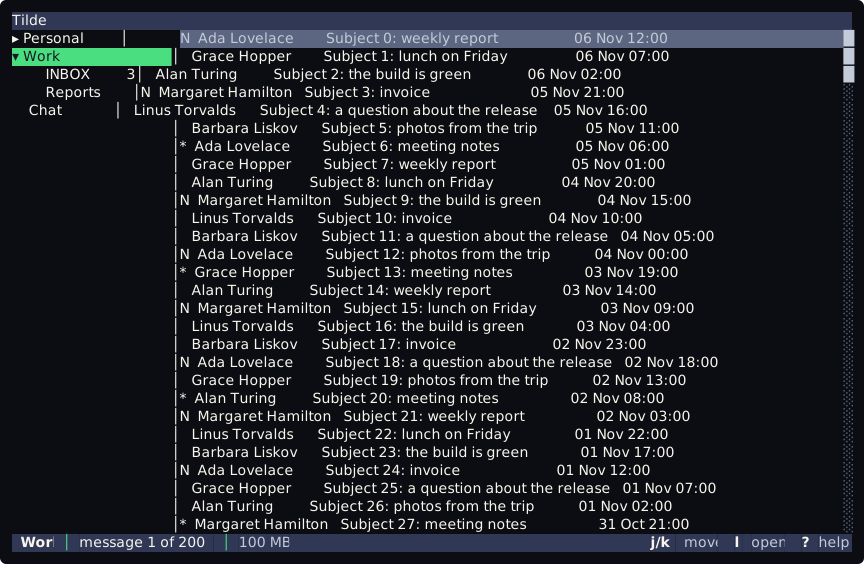
▸ marks a closed account and ▾ an open one. Press Ctrl-w again to give the focus back to the list.
All the keys of the list and the tree are on Keys and counts.
Next: 3. Read a message.